
Using the Member Profile
What the Member Profile Is For
Section titled “What the Member Profile Is For”Everything Datascout knows about one member, in a panel beside their iMIS record.
It is the thirty-second read before you call someone: a short written brief, how much they have given and spent, how engaged they have been, every interaction on one timeline, and the tags that describe them.
It sits over iMIS rather than replacing it, and it is mostly for reading. You cannot change a member’s name, email or address here — that stays in iMIS.
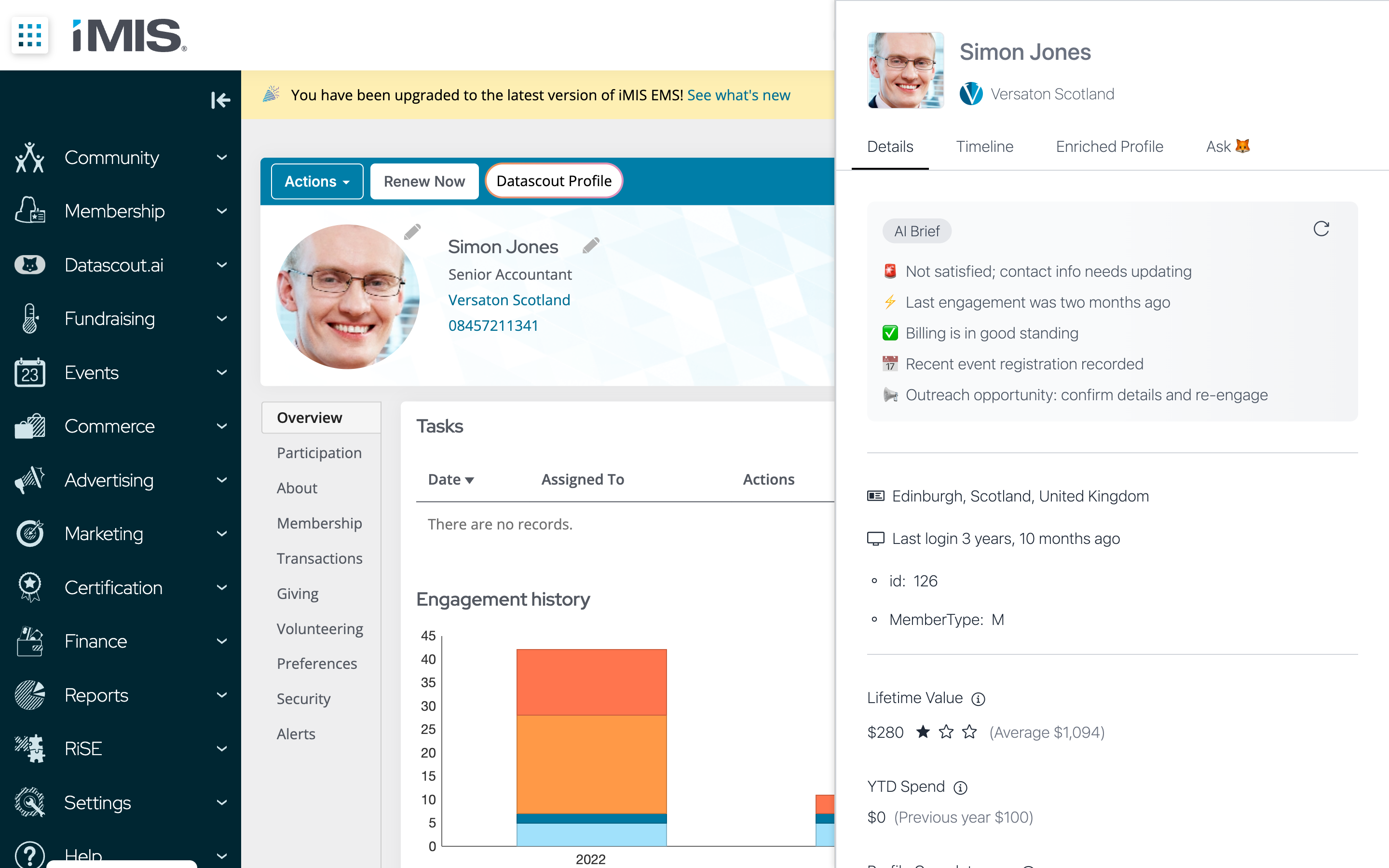
The Details Tab
Section titled “The Details Tab”The panel opens here. Four tabs run across the top — Details, Timeline, Enriched Profile and Ask — and Details is the summary.
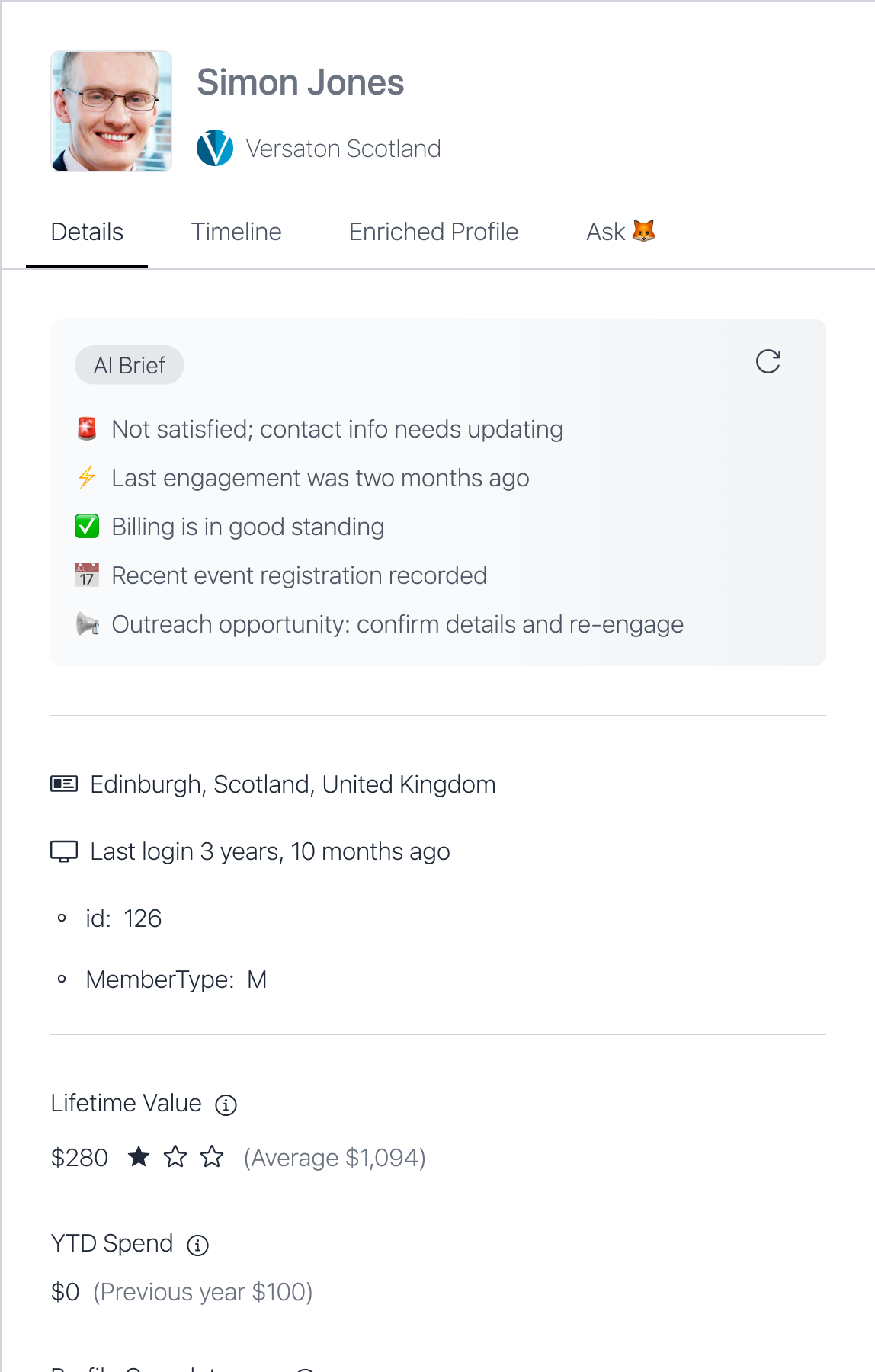
| Section | What it tells you |
|---|---|
| AI Brief | Five short lines summarizing the member right now — standing, recent engagement, and what to do about it. |
| Lifetime Value | What this member has been worth, with a star rating and your account average in brackets for comparison. |
| YTD Spend | This year, with last year in brackets. |
| Profile Completeness | How much of their record is filled in, out of 15. |
| Time Since Last Engagement | How long since they did anything at all. |
| Events Attended | A count you can expand, plus their most recent event. |
| Lifetime Donations | The total, how many donations, and the date of the last one. |
| Tags | The labels that describe this member. See Tags below. |
The Timeline
Section titled “The Timeline”Everything that has happened with this member, newest first, in one feed.
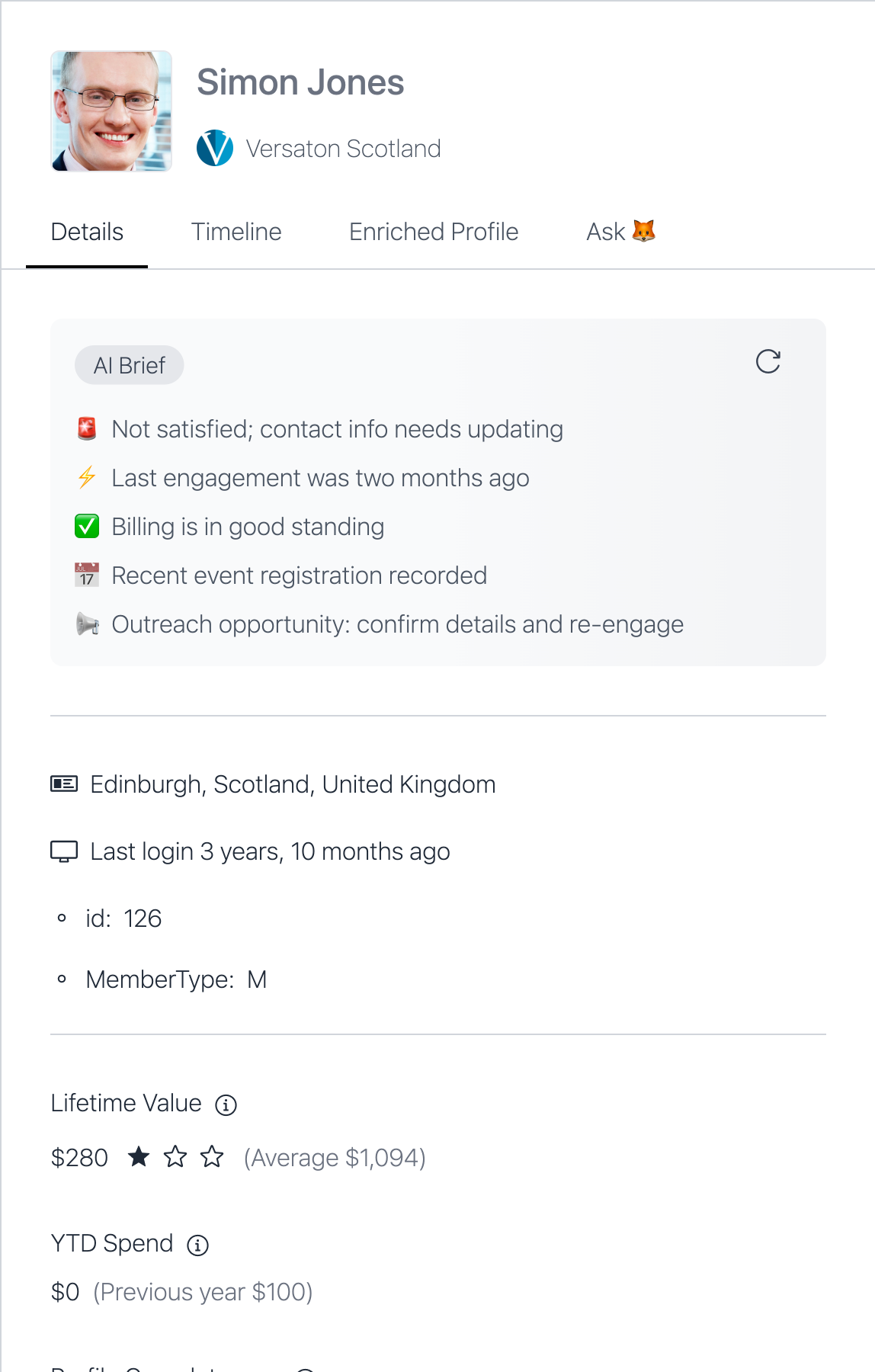
Committee activity, gifts, event registrations and email responses all land here rather than in sections of their own. Each entry carries a line reading Source and Category, which is how you tell them apart.
The part worth reading carefully, because two kinds of tag look similar and behave completely differently.
Color means you can change it. White means you cannot.
| Tag | Where it comes from | Can you change it? |
|---|---|---|
| Colored chip | Added by a person or by a campaign response | Yes — click it to remove it |
| White chip | Worked out from the member’s own iMIS data, such as their location or member type | No. It updates itself when the iMIS record changes |
Adding a Tag
Section titled “Adding a Tag”Click + beside the tags to open the list.
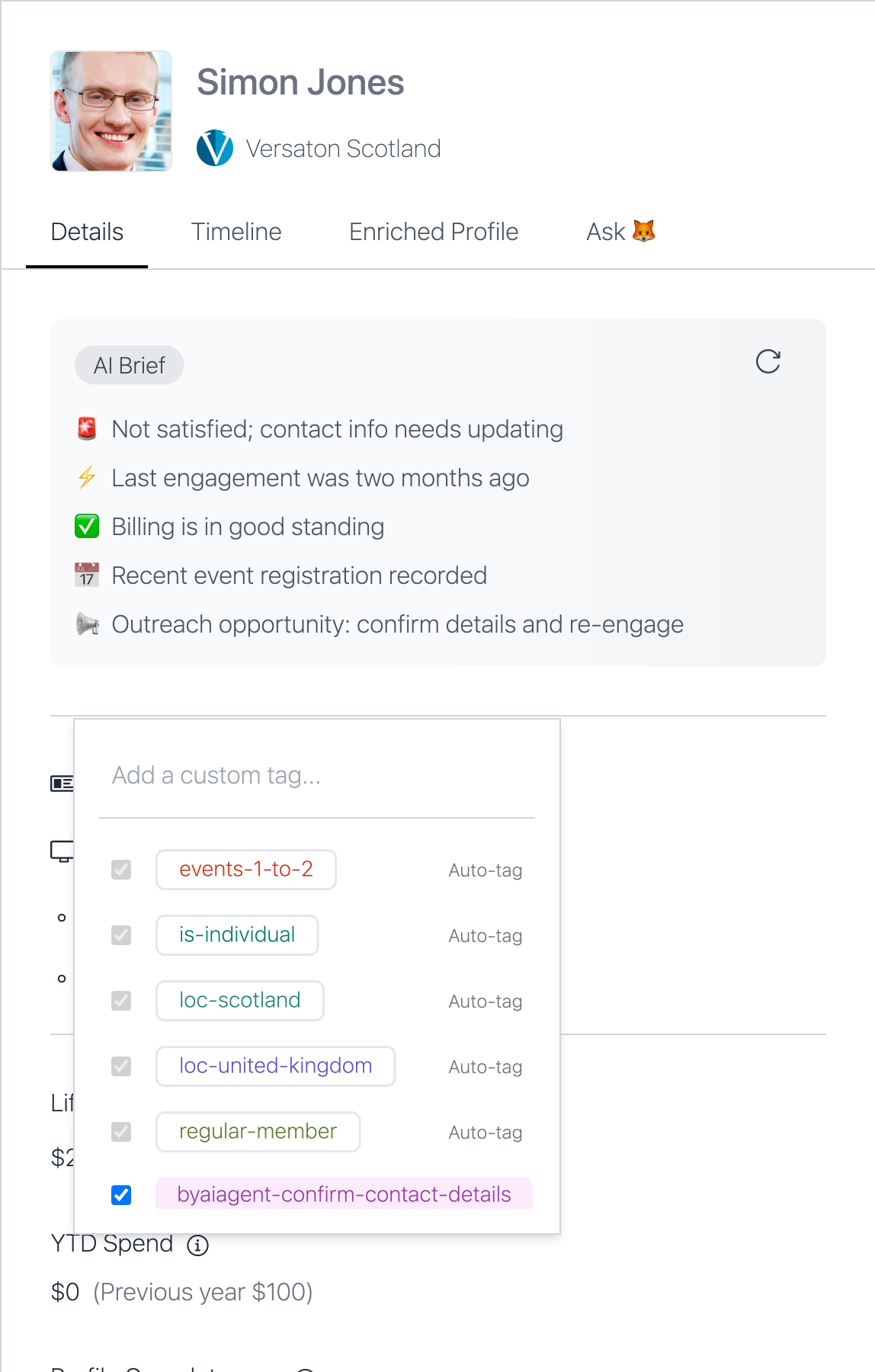
Tick a tag to apply it, untick to remove it. The locked checkboxes are the automatic ones — they are shown so you can see they are there, not so you can change them.
Creating a Tag
Section titled “Creating a Tag”Type into the same box at the top of the list. It searches as you type, matching anywhere in a tag’s name rather than only the beginning — so typing conf finds conference-interested and byaiagent-confirm-contact-details both.
If nothing matches, the list offers to create what you typed.
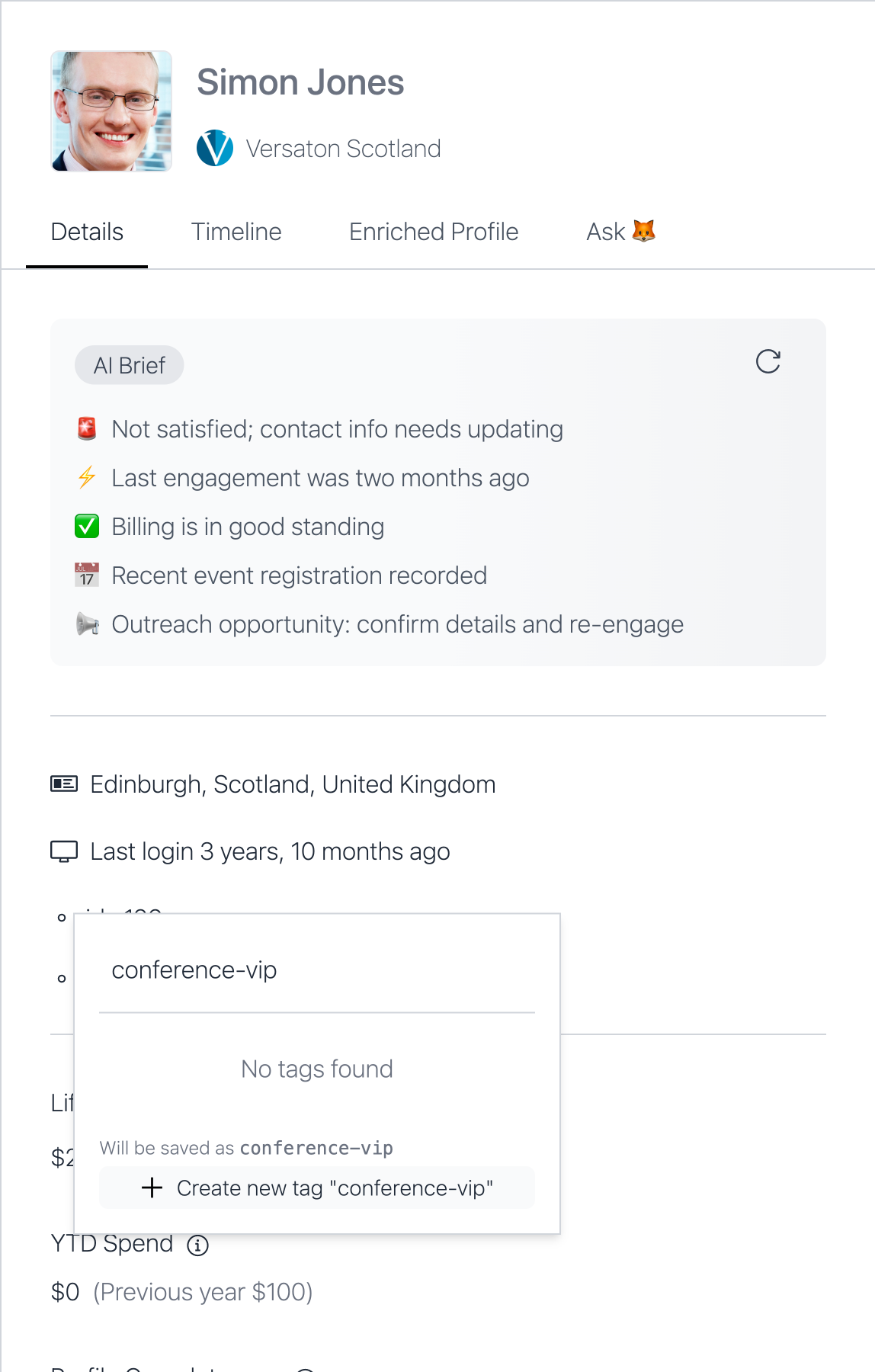
What you type is not quite what gets saved, and the preview line tells you what will be. Tags are lower-cased, spaces and underscores become hyphens, accents are stripped and punctuation is dropped:
| You type | It saves |
|---|---|
Conference VIP 2026 | conference-vip-2026 |
Lapsed Member | lapsed-member |
UPPER_CASE_tag | upper-case-tag |
Read that preview before clicking. It is the difference between one tag and two nearly identical ones.
The Enriched Profile Tab
Section titled “The Enriched Profile Tab”Public information gathered from outside your own records — areas of interest, and a short professional and personal summary — built from the member’s name, company and email.
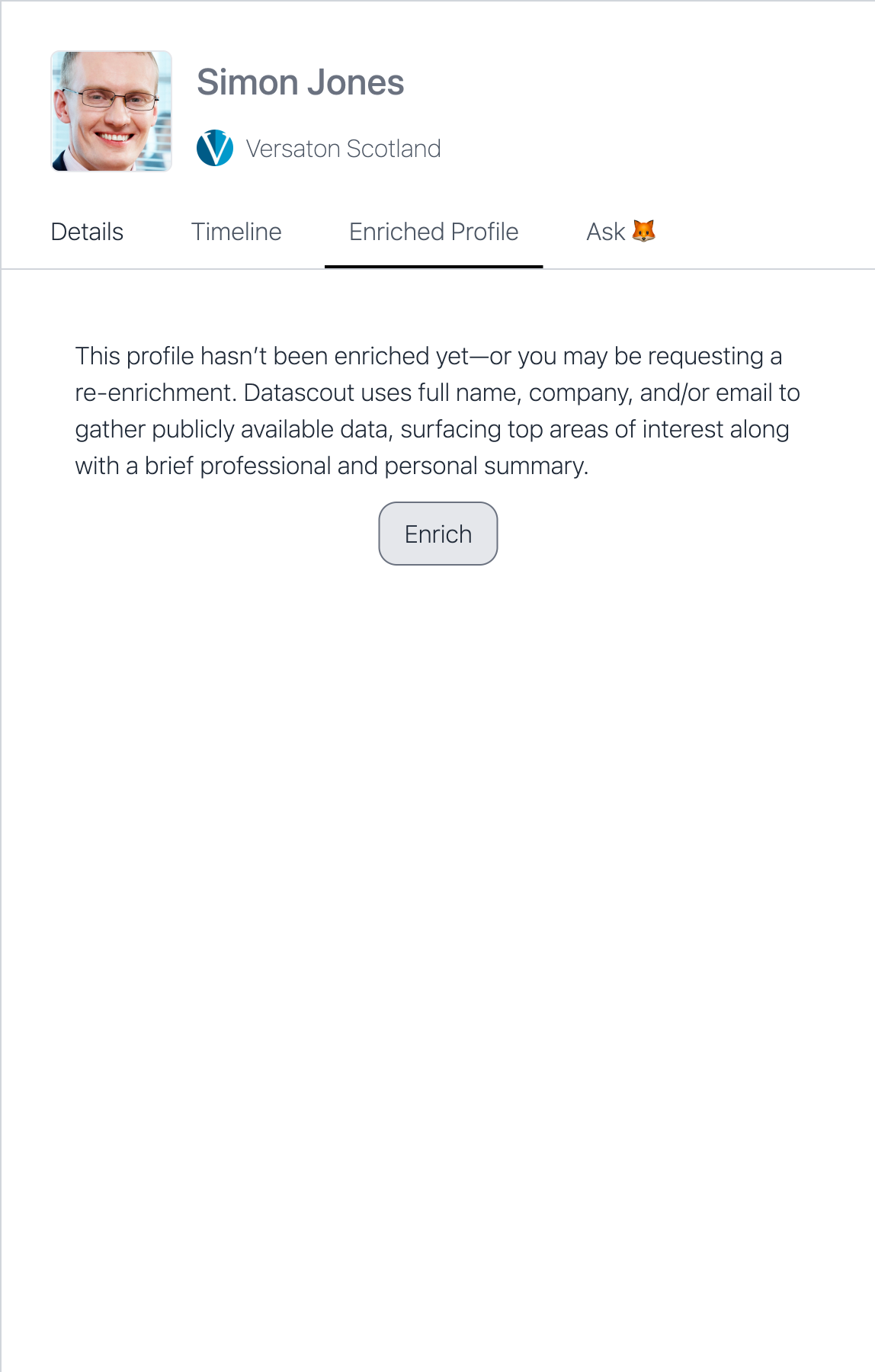
It is empty until someone runs it. Enrich starts it.
The Ask Tab
Section titled “The Ask Tab”A chat about this one member. Ask a question in your own words and Datascout answers from everything on the other three tabs.
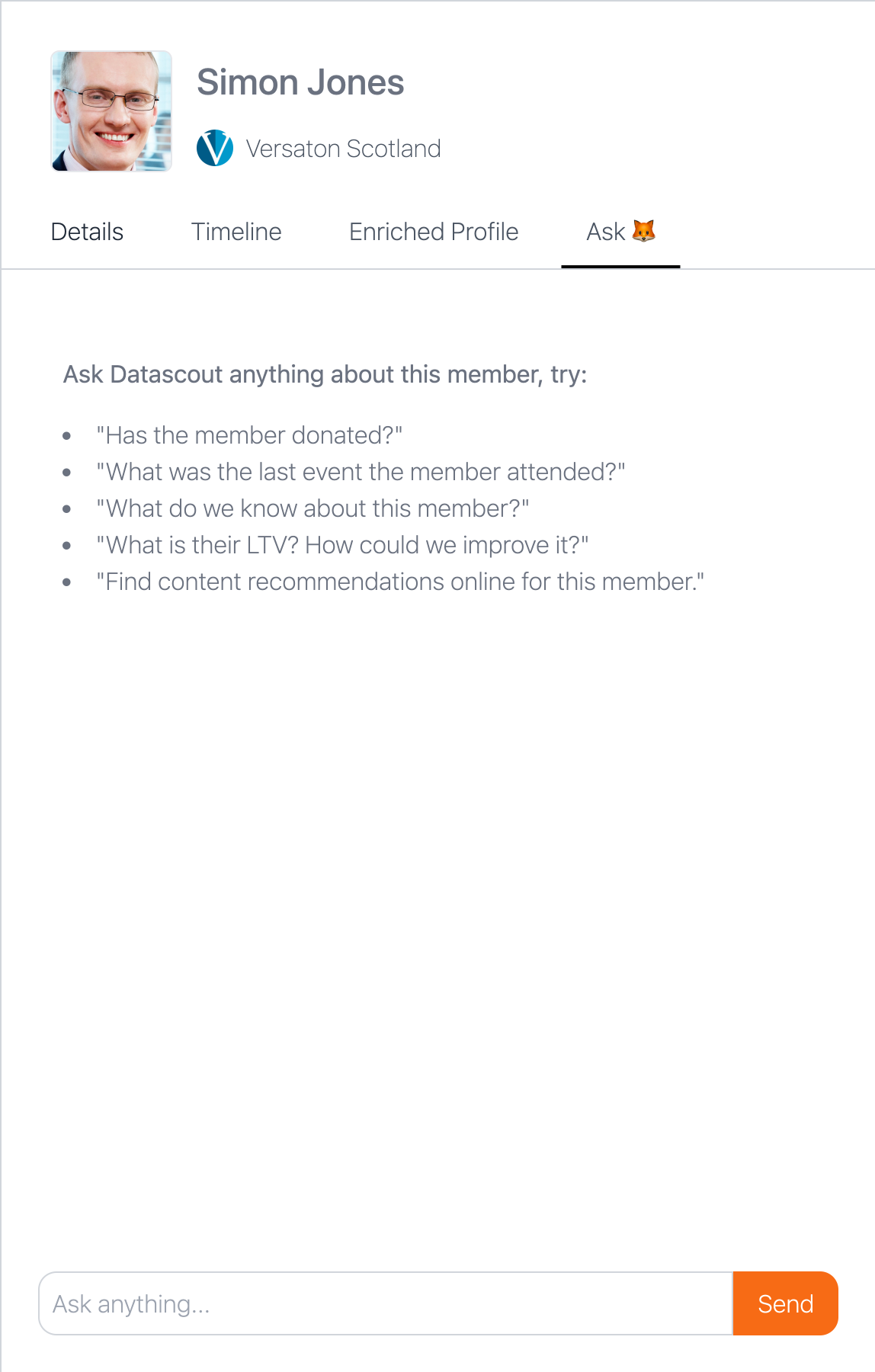
The empty state suggests a few to start with — whether the member has donated, what the last event they attended was, what their lifetime value is and how it could be improved.
What You Cannot Do Here
Section titled “What You Cannot Do Here”| You cannot | Where it happens instead |
|---|---|
| Edit the member’s name, email, address or phone | In iMIS, through Edit personal details on the account page |
| Print, export or download the profile | Nowhere — there is no export on this panel |
| Change an automatic tag | It follows the member’s iMIS data; change the data and the tag follows |
Troubleshooting
Section titled “Troubleshooting”| Symptom | Cause & fix |
|---|---|
| A tag you expected is not in the list | The list scrolls and shows only a few at a time. Scroll it before concluding the tag does not exist. |
| You created a tag and the name came out different | Tags are normalized on save. The preview line above the create button shows exactly what will be stored. |
| Clicking a tag does nothing | It is a white one, worked out from iMIS data. Those cannot be changed here. |
| The profile will not load, or shows an error | This is a configuration problem rather than something you can fix. Contact support@datascout.ai. |