
Delivery Reports
Before you start — you need at least one action that has already been run. Delivery Reports describes sends that have happened; it has nothing to show for a campaign still being written.
What Delivery Reports Is For
Section titled “What Delivery Reports Is For”This is where you find out whether the email arrived.
There are two screens, and they answer different questions.
| Screen | The question it answers |
|---|---|
| The report list | Did our recent sends arrive? One health check across every campaign, plus a list of individual runs. |
| A single run | What happened to this one send, person by person — delivered, bounced, opened, answered. |
It reports and nothing more. There is no resend here, no way to see the email itself, nothing to click on a bounced address. Those live elsewhere, and What This Screen Does Not Do says where.
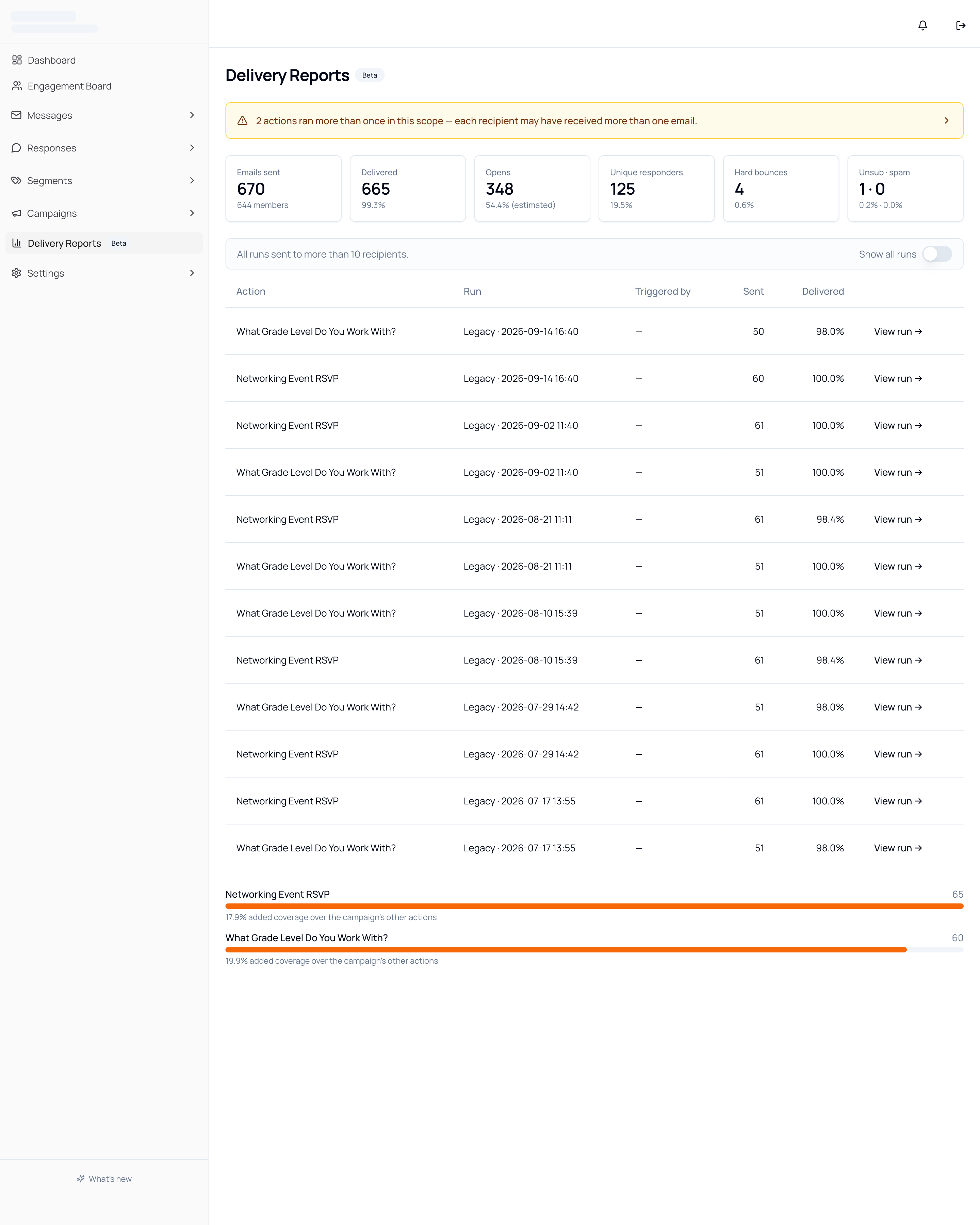
Opening Delivery Reports
Section titled “Opening Delivery Reports”- Go to Datascout Engage and log in with the credentials provided by the Datascout team.
- In the left sidebar, click Delivery Reports. It sits below the Campaigns section.

The Health Banner
Section titled “The Health Banner”A plain-language verdict across everything in scope, in one of three states.
| State | What it means |
|---|---|
| Healthy | Delivery, bounces, spam complaints and unsubscribes are all within normal range. |
| Worth watching | Something is drifting. Nothing is failing yet, but one measure is heading the wrong way. |
| Needs action | A measure has crossed its threshold — a delivery rate below 95%, for example. |



When One Action Ran More Than Once
Section titled “When One Action Ran More Than Once”A yellow warning appears when the same action has been run several times in the period. The warning is a button — click it and it expands to name the actions and how many times each ran.

The List of Runs
Section titled “The List of Runs”Each row is one run of one action — not a campaign, and not a message.
| Column | What it shows |
|---|---|
| Action | The action that was run. |
| Run | When it ran. |
| Triggered by | What started it. A run that no trigger produced shows a dash. |
| Sent | How many messages that run generated. |
| Delivered | How many of them arrived. |
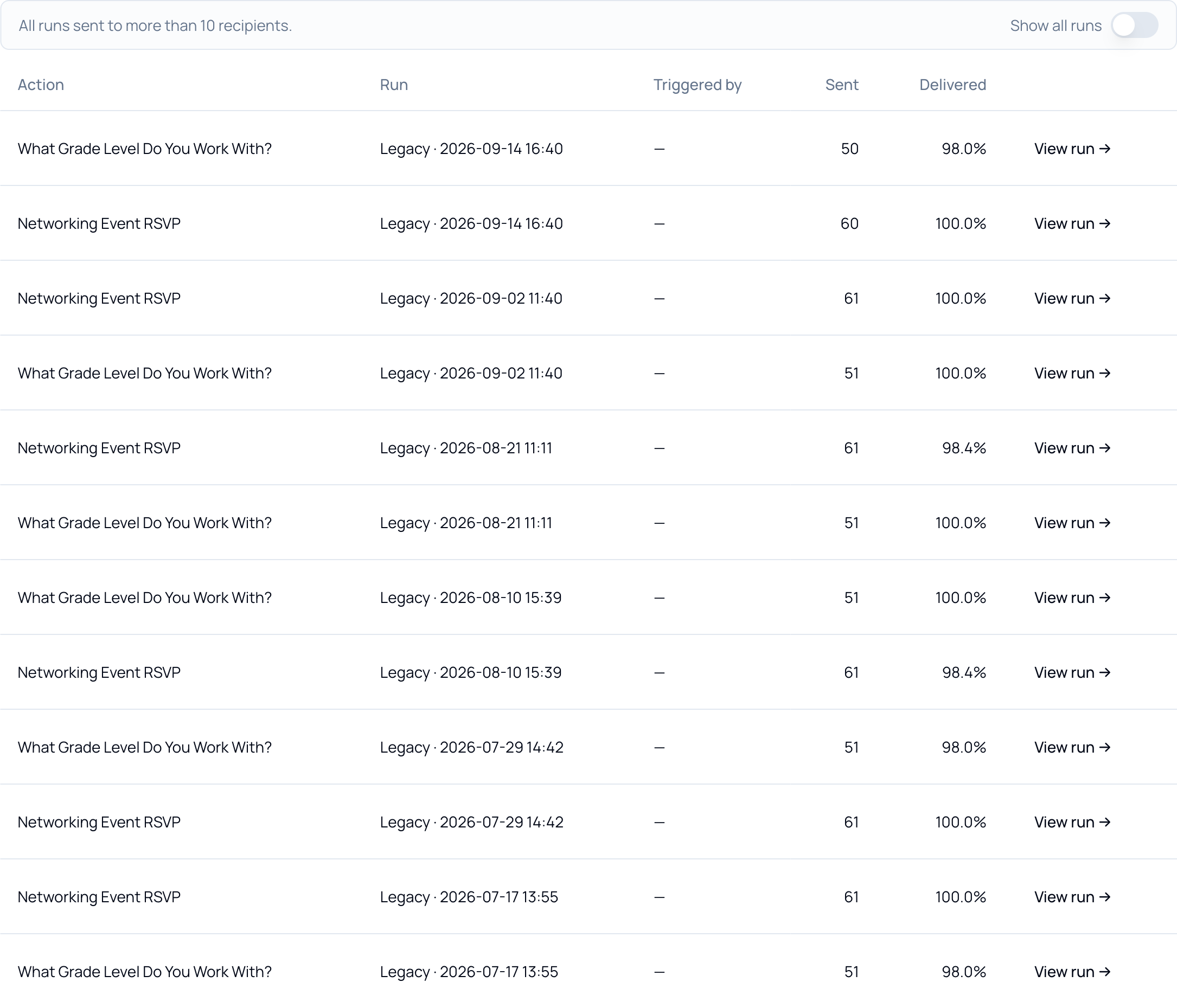
Rows do not expand. View run → at the end of a row opens that send’s own report.
The Show all runs toggle brings in runs that went to very small numbers of recipients, which are hidden by default because they are usually tests.
Unique Reach
Section titled “Unique Reach”How many separate people each action reached, rather than how many messages it sent.

Looking at a Single Run
Section titled “Looking at a Single Run”Three selects at the top of the run report choose what you are looking at.

| Control | What it does |
|---|---|
| Campaign | Which campaign to report on, or All campaigns for everything at once. |
| Action | Which action within that campaign. |
| Run | Which run of that action, by date. |
| Export PDF | Saves the report as it currently stands. |
Setting Campaign to All campaigns replaces Action and Run with Date range — the only place in Delivery Reports where the period can be changed.

What Each Number Means
Section titled “What Each Number Means”Six tiles summarize the run. Most are self-explanatory; three are not, and they are worth reading carefully before you quote any of them.
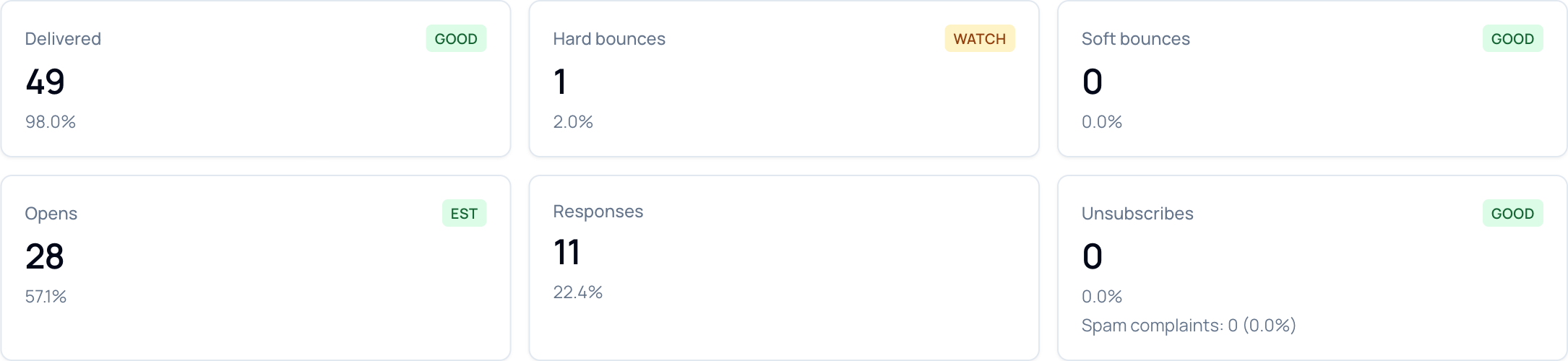

The Recipient List
Section titled “The Recipient List”Who received the message, and what each of them did.
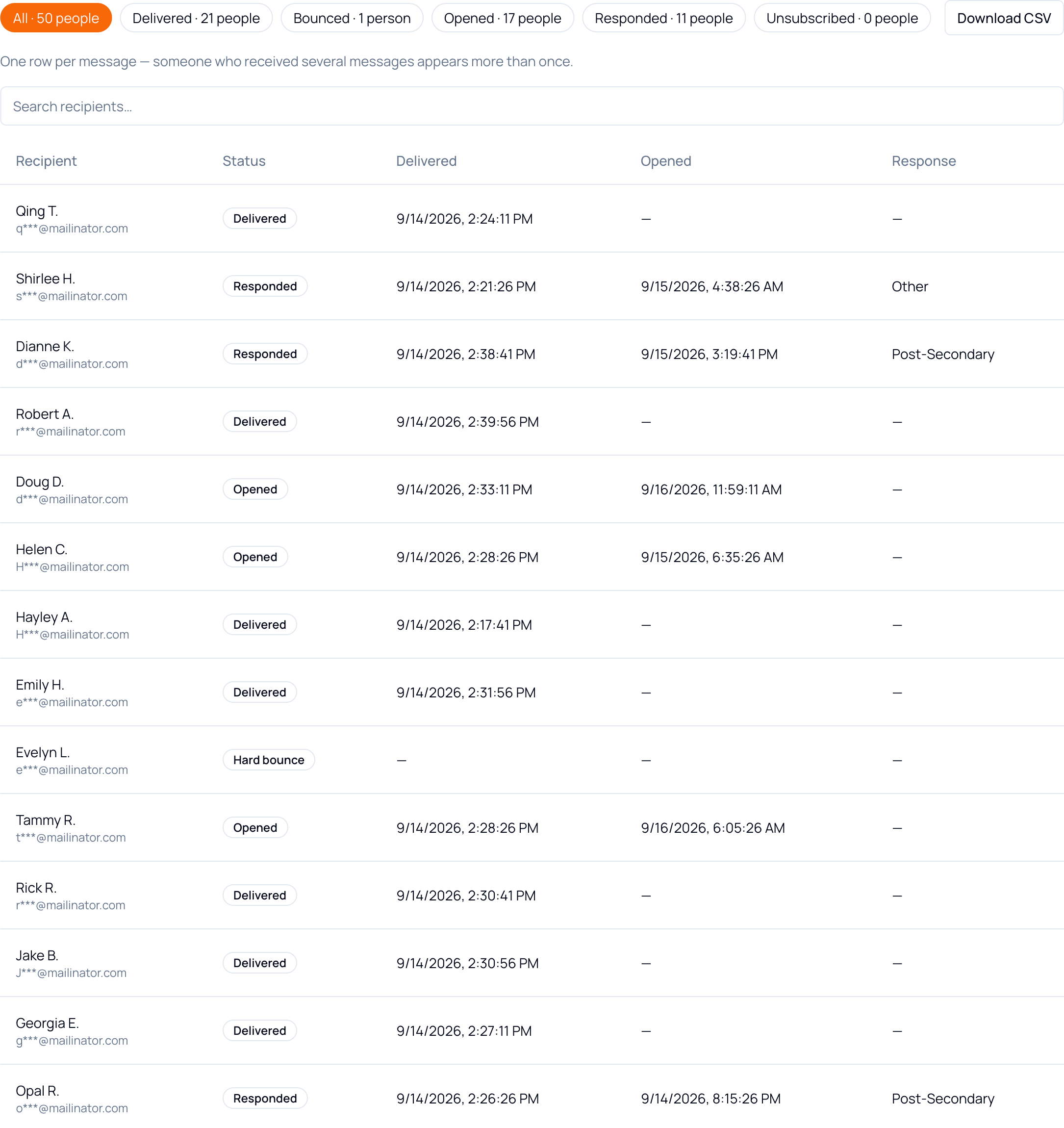
One row is one message. Someone who received several messages in the same run appears more than once — the page states this above the table.
| Column | What it shows |
|---|---|
| Recipient | Name, with the email address partly masked. |
| Status | Delivered, Opened, Responded, or a bounce. |
| Delivered | When it arrived. |
| Opened | When it was first opened, if it was. |
| Response | The one-click answer the member chose. |
The tabs along the top filter the list, and the view they produce is addressable — copy the URL and a colleague opens the same filtered list. Search recipients… narrows by name, and Download CSV takes the current view out as a file.
What This Screen Does Not Do
Section titled “What This Screen Does Not Do”Worth knowing before you go looking.
| You cannot | Where it lives instead |
|---|---|
| Resend or re-run a send | On the action itself, under Campaigns. |
| See the email that was sent | Use Preview on the action, under Campaigns. |
| Act on a bounced address | Bounces are listed here, but correcting or suppressing an address is done in your member data. |
Troubleshooting
Section titled “Troubleshooting”| Symptom | Cause & fix |
|---|---|
| The totals look lower than you expected | The list covers the last 90 days only. Open a run, set Campaign to All campaigns, and widen Date range. |
| An old send is missing entirely | Same cause. Anything outside the window is absent rather than marked. |
| Emails sent is higher than your membership | Check the duplicate-send warning. The same action run twice counts its messages twice. |
| The Delivered tile and the Delivered tab disagree | They are counting different things. See What Each Number Means. |
| A member says they never received it, but it shows Delivered | Delivered means the mailbox provider accepted it. Spam filtering after that point is not visible here. |
| Open rates look impossibly high | Opens are estimated, and some are machine-generated. The EST chip marks every figure affected. |
| Triggered by is empty on every row | Only runs started by a trigger name one. A run started by hand shows a dash. |