
Tailoring the Concierge
What You Are Customizing
Section titled “What You Are Customizing”Two plain-text documents that travel with every Concierge conversation.
When a member replies to an Engage message and lands in a Concierge chat, the Concierge answers using whatever it knows about your organization. That knowledge comes from two context prompts stored in your environment — ordinary text you write and edit yourself.
Configured well, the Concierge can answer questions accurately, point members at the right page on your website, recommend the events and programs you actually run, and reply in the right language.
| Prompt | What it shapes |
|---|---|
| General Context | How the Concierge should think and speak — who you are, your tone, your vocabulary, your language rules, and where to send people. |
| Services Offered | What the Concierge can recommend — membership types and fees, programs, events, and member resources. |
Opening the Context Page
Section titled “Opening the Context Page”- Go to Datascout Engage and log in with the credentials provided by the Datascout team.
- In the left sidebar, click Settings, then Context.
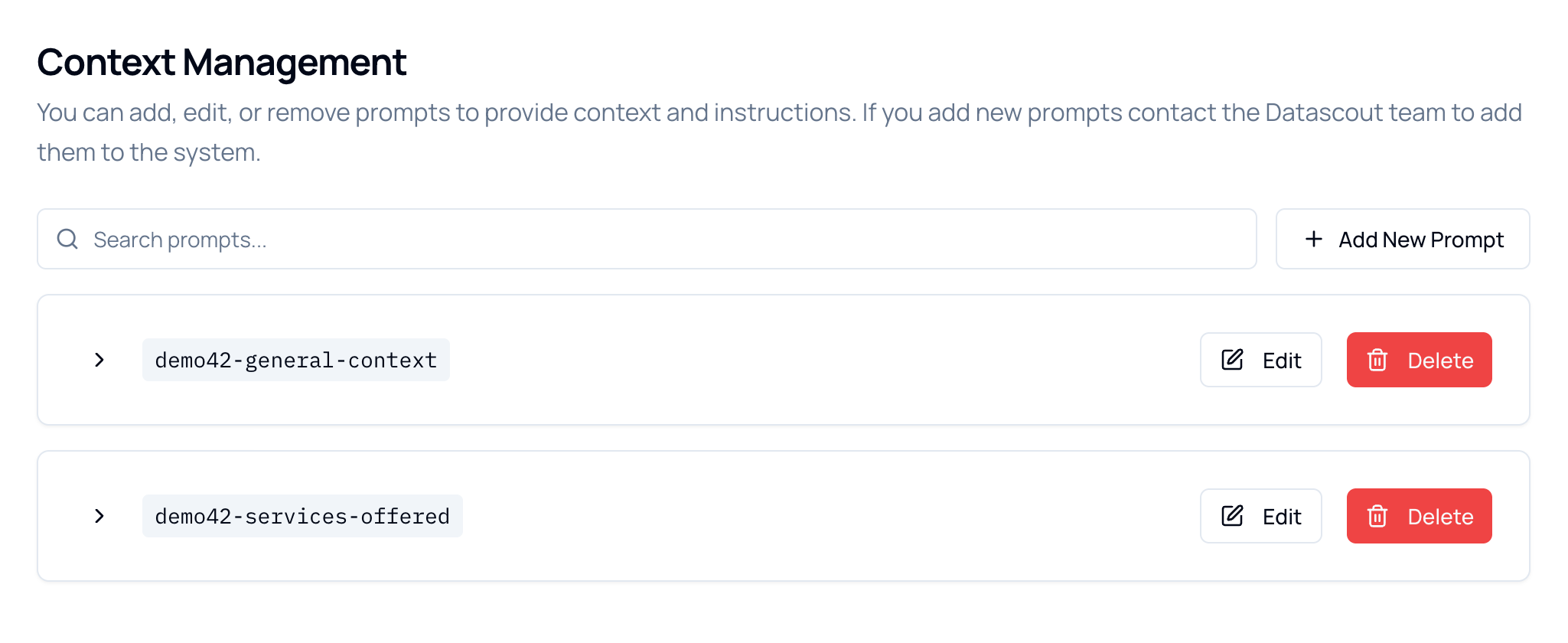
The Two Prompts
Section titled “The Two Prompts”Both are named after your environment, so the names differ from account to account.
| Prompt key | Shapes |
|---|---|
[environment]-general-context | How the Concierge thinks and communicates |
[environment]-services-offered | What the Concierge can recommend |
In an environment called demo42 they appear as demo42-general-context and demo42-services-offered. Yours will carry your own environment name in place of demo42.
Viewing a Prompt
Section titled “Viewing a Prompt”Click the chevron beside a prompt’s name to read it without opening the editor.
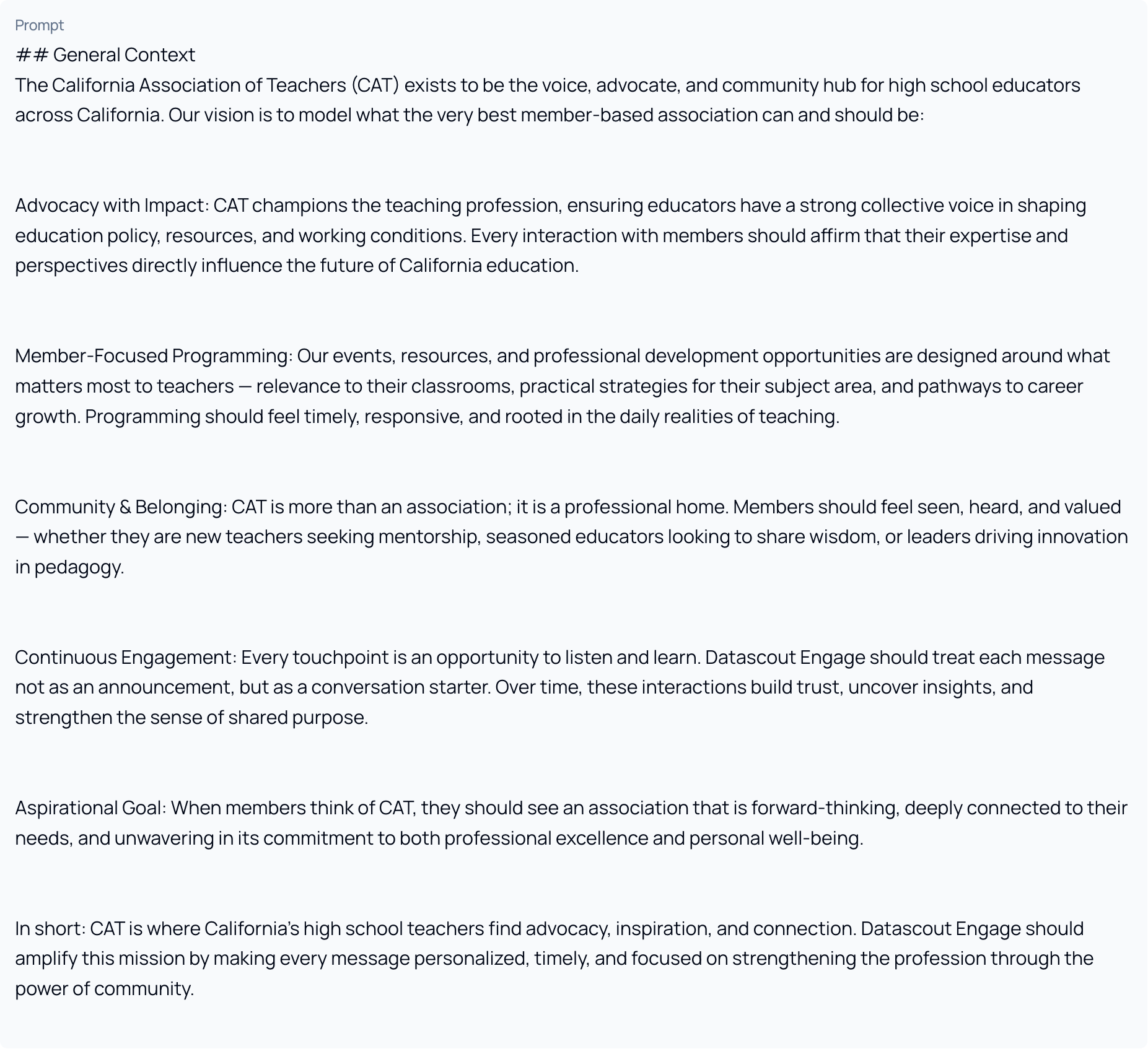
Use this whenever you just want to check what the Concierge currently knows. Nothing can be changed by accident from here. Click the chevron again to collapse it.
Editing a Prompt
Section titled “Editing a Prompt”- Click Edit on the prompt you want to change.
- Edit the text in the editor. It has line numbers and highlights Markdown as you type.
- Click Save Changes. Clicking Cancel discards everything since you opened it.
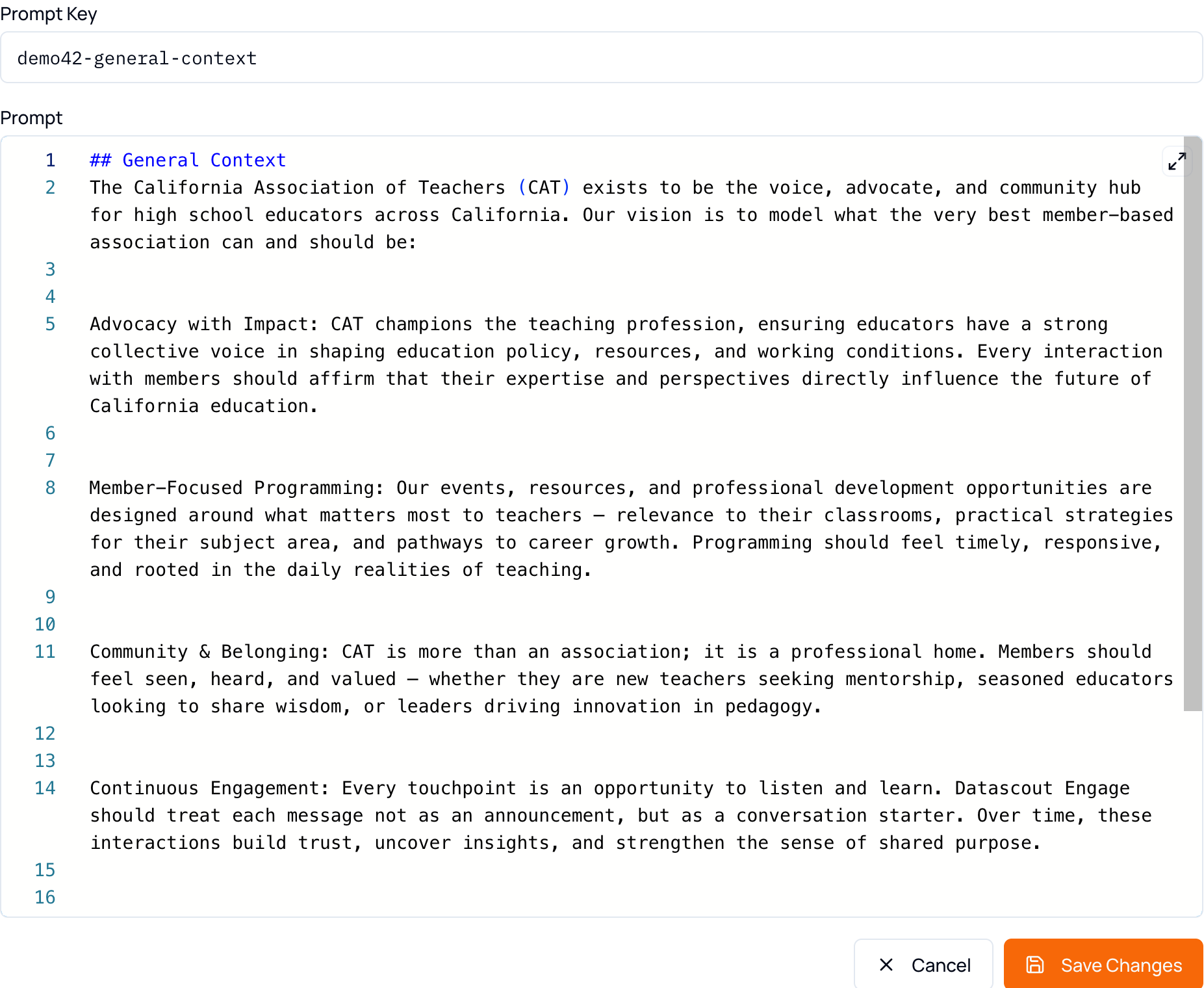
Writing General Context
Section titled “Writing General Context”The Concierge’s briefing about your organization: who you are, how you speak, and where to point people.
Three additions make the biggest difference.
1. Language Preferences
Section titled “1. Language Preferences”If you operate in more than one language, spell out the rules — your official name in each language, and exactly when each should be used.
## Language Preferences
English name:Canadian Association of Architects
French name:Association canadienne des architectes
Language rules:If a member writes in French, respond fully in French.If a member's preferred language in their profile is French, default to French communication.Otherwise respond in English.When responding in French, use the official French name of the organization.
2. Your Terminology
Section titled “2. Your Terminology”Add the words your organization actually uses, so the Concierge sounds like your website and your emails rather than a generic assistant.
## Organizational Terminology
Use the following terminology when communicating with members:Member – individuals who belong to the association.Chapter – regional member groups that organize local networking and learning opportunities.Certification – professional credentials offered by the association.Continuing Education – courses and training that support ongoing professional development.Congress – the association's annual conference and flagship event.Committee – volunteer leadership groups that support programs and governance.
Use these terms when describing programs, services, and opportunities so messagingremains consistent with the organization's language.
3. Website Pages It Can Reference
Section titled “3. Website Pages It Can Reference”Give the URLs and say when each applies. Without the “when”, the Concierge has a list of links and no idea which one answers the question in front of it.
## Website Resources
Events PageURL: https://yourassociation.org/eventsUse this page when members ask about: upcoming events, conferences, webinars, training opportunities
Membership Benefits PageURL: https://yourassociation.org/membership-benefitsUse this page when members ask about: the benefits of membership, what members receive, reasons to join
Professional Development PageURL: https://yourassociation.org/professional-developmentUse this page when members ask about: certifications, courses, continuing education programs
When answering member questions related to events, membership benefits, or training,reference the relevant page and include the link so the member can access it directly.Writing Services Offered
Section titled “Writing Services Offered”The catalog the Concierge recommends from. Specificity is everything here.
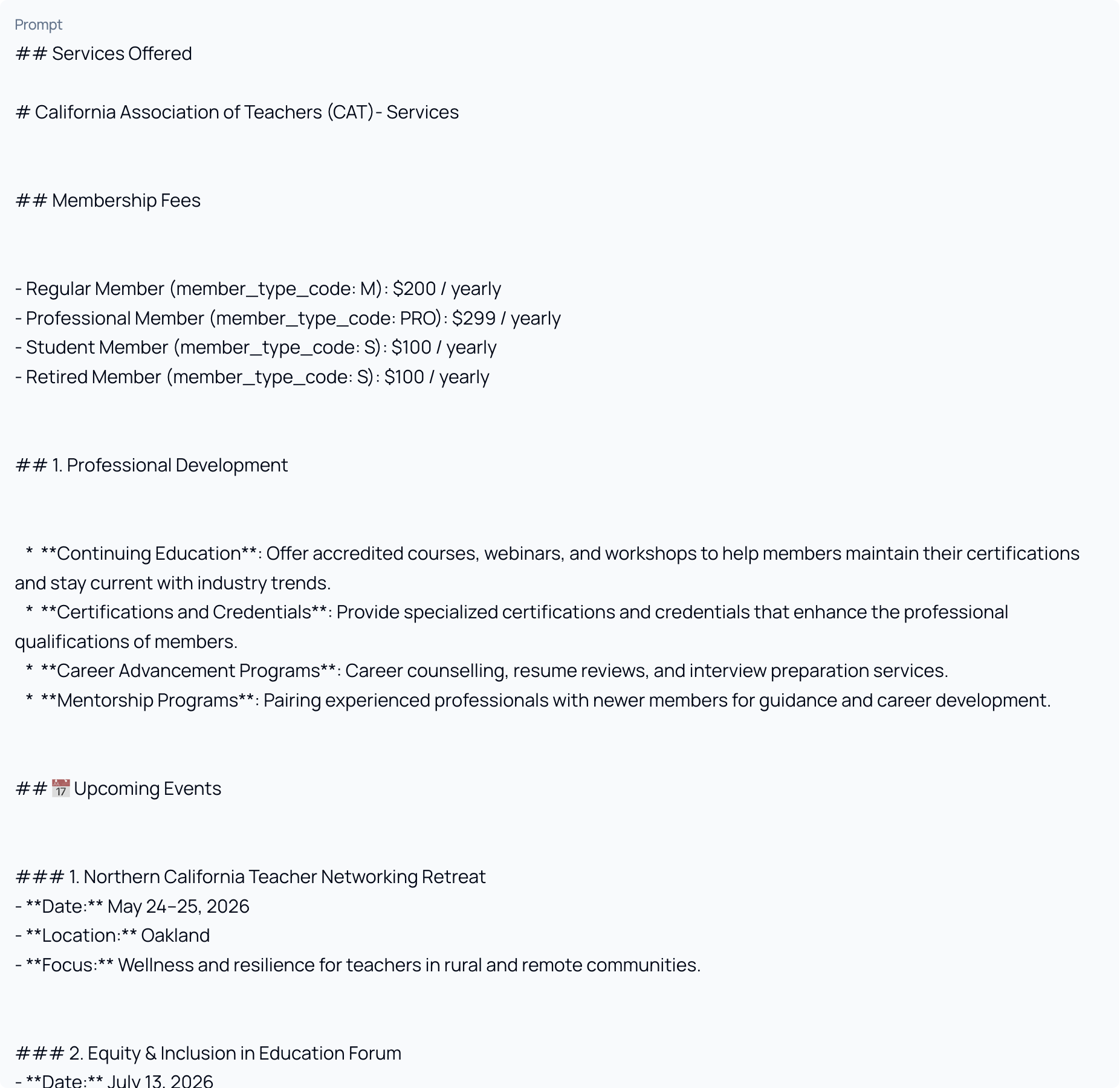
| Include | Why it matters |
|---|---|
| Membership types & fees | Lets the Concierge answer pricing and eligibility questions instead of deflecting them. |
| Programs and services | Grouped under your own headings, so recommendations use your language. |
| Events | Name, date, location and a one-line focus each — so it recommends real events, not vague ones. |
| Member resources | Reports, toolkits, publications, directories, job boards. |
Membership Types
Section titled “Membership Types”List each category with its fee, so the Concierge can answer questions about options and pricing rather than deflecting them.
## Membership Types
Regular MemberAnnual membership for working professionals in the industry.Fee: $295 per year
Student MemberAvailable to full-time students enrolled in an accredited program related to the profession.Fee: $75 per year
Corporate MemberDesigned for organizations that want to provide membership access to multiple employees.Fee: $1,200 per year
If a member asks about membership options, eligibility, or pricing, reference thesemembership categories and explain the differences.Programs, Events and Resources
Section titled “Programs, Events and Resources”Group programs under your own headings — Professional Development, Networking, Advocacy, Research, Publications, Chapters — with a line on what each offers.
For resources, list what members can actually reach: research reports, toolkits, publications, member directories, job boards.
Events need more structure than the rest, because the Concierge has to be able to answer “when” and “where” and not just “what”:
### 1. Northern California Teacher Networking Retreat- **Date:** May 24–25, 2026- **Location:** Oakland- **Focus:** Wellness and resilience for teachers in rural communities.Adding a Prompt
Section titled “Adding a Prompt”You can create additional prompts — but they need switching on before they do anything.
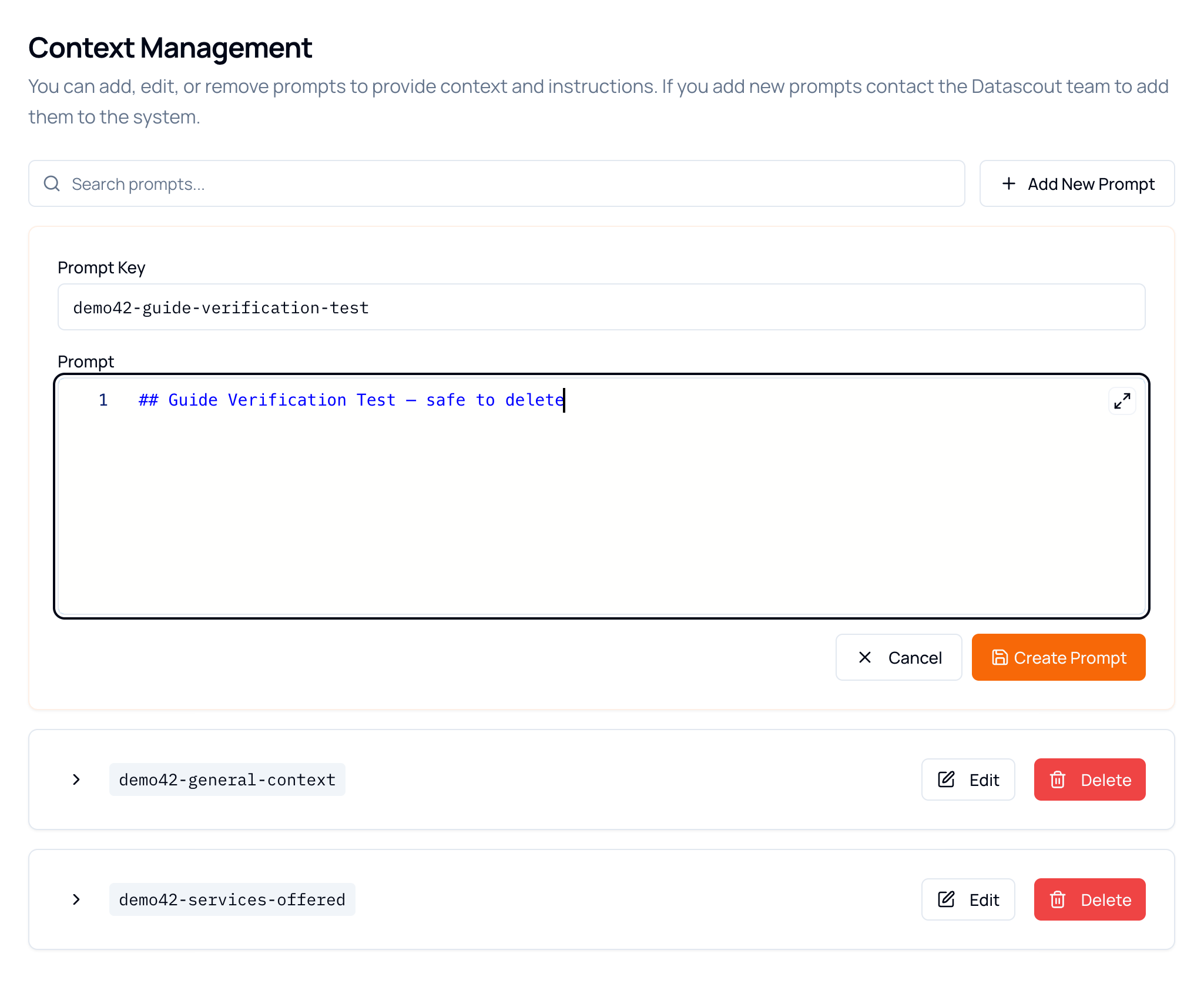
- Click Add New Prompt.
- Enter a Prompt Key, beginning with your environment name — the field shows the expected shape, e.g.
demo42-your_key. - Write the prompt text.
- Click Create Prompt. It stays greyed out until both a key and some content are present.
Deleting a Prompt
Section titled “Deleting a Prompt”In practice there is rarely a reason to delete either standard prompt. If a section is wrong, edit it out; if a prompt is unused, leaving it costs nothing.
How the Two Work Together
Section titled “How the Two Work Together”General Context governs how the Concierge speaks — the language it replies in, the words it chooses, the pages it points to. Services Offered governs what it can offer — the tiers, programs, events and resources that actually exist.
A member asking “are there any events for me this spring?” is answered by both at once: Services Offered supplies the events, General Context decides which language to answer in, what to call them, and which page to link for registration.
Troubleshooting
Section titled “Troubleshooting”| Symptom | Cause & fix |
|---|---|
| The Concierge gives generic answers | The prompts are probably still close to their defaults. Add your terminology, your website URLs, and your real programs — generic in, generic out. |
| It recommends the wrong or an outdated event | The events list in Services Offered is out of date. It has no other source for what’s coming up. |
| It replies in the wrong language | Add explicit language rules to General Context — both the trigger (what the member wrote, or their profile’s preferred language) and the expected response. |
| It doesn’t link to your website | Add the URLs to General Context, each with a line saying when to use it. A URL with no “when” rarely gets used. |
| Create Prompt stays greyed out | Both the Prompt Key and some prompt text are required. |
| A new prompt has no effect | New prompts must be enabled by the Datascout team before the Concierge reads them. |
| An edit doesn’t seem to have applied | Confirm you clicked Save Changes rather than Cancel, then reload the page and expand the prompt to check the saved text. |
| Part of the page fails to load | Reload the page. A browser tab left open across an update can hold on to stale files. |