
Creating a Trigger
What a Trigger Is
Section titled “What a Trigger Is”A campaign says “message these people now.” A trigger says “message anyone who ever becomes one of these people.”
A campaign action is a one-off: you point it at a segment and press Run Action. A trigger is standing instructions. You point it at a single tag, and from then on it catches members as they qualify — without anyone opening Engage.
Everything else about it is the same machinery as a campaign action: a sender, a subject and body, a question with one-click responses.
Opening Triggers
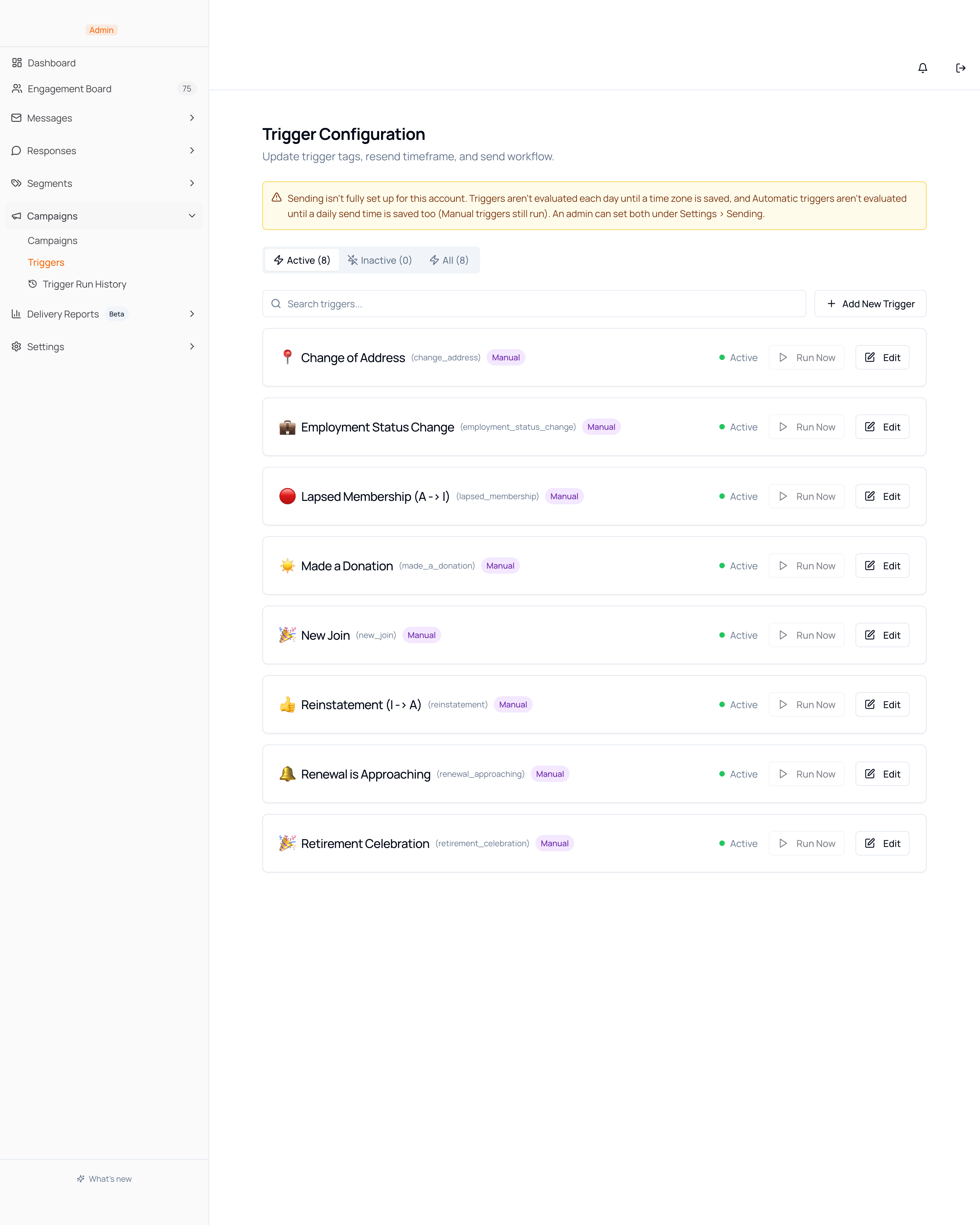
Section titled “Opening Triggers”- Go to Datascout Engage and log in with the credentials provided by the Datascout team.
- In the left sidebar, open the Campaigns section and click Triggers.
The Trigger List
Section titled “The Trigger List”Each card is one trigger, not one send.
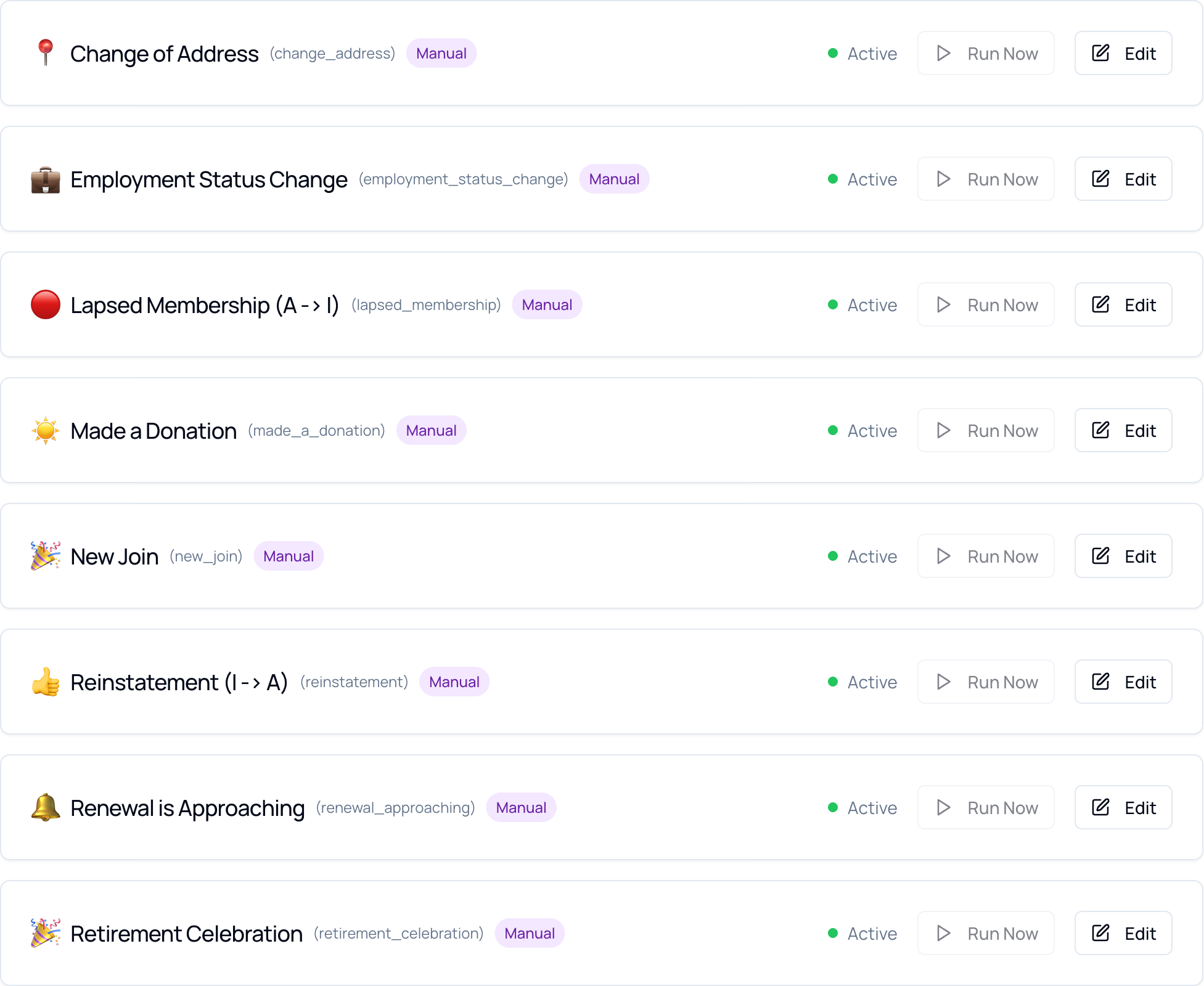
| On the card | What it tells you |
|---|---|
| Emoji and name | What this trigger is for. |
| Short code, in brackets | The identifier used elsewhere in Engage. |
| Manual / Automatic badge | Whether it sends on its own or waits for approval. |
| Status | Whether it is active at all. |
| Run Now | Evaluates this one trigger immediately, without waiting for the daily run. |
| Edit | Reopens the full form. |
Above the list, tabs filter by Active, Inactive or All, and a search box narrows by name.
Creating One
Section titled “Creating One”Click Add New Trigger. The form opens inline, above the list.
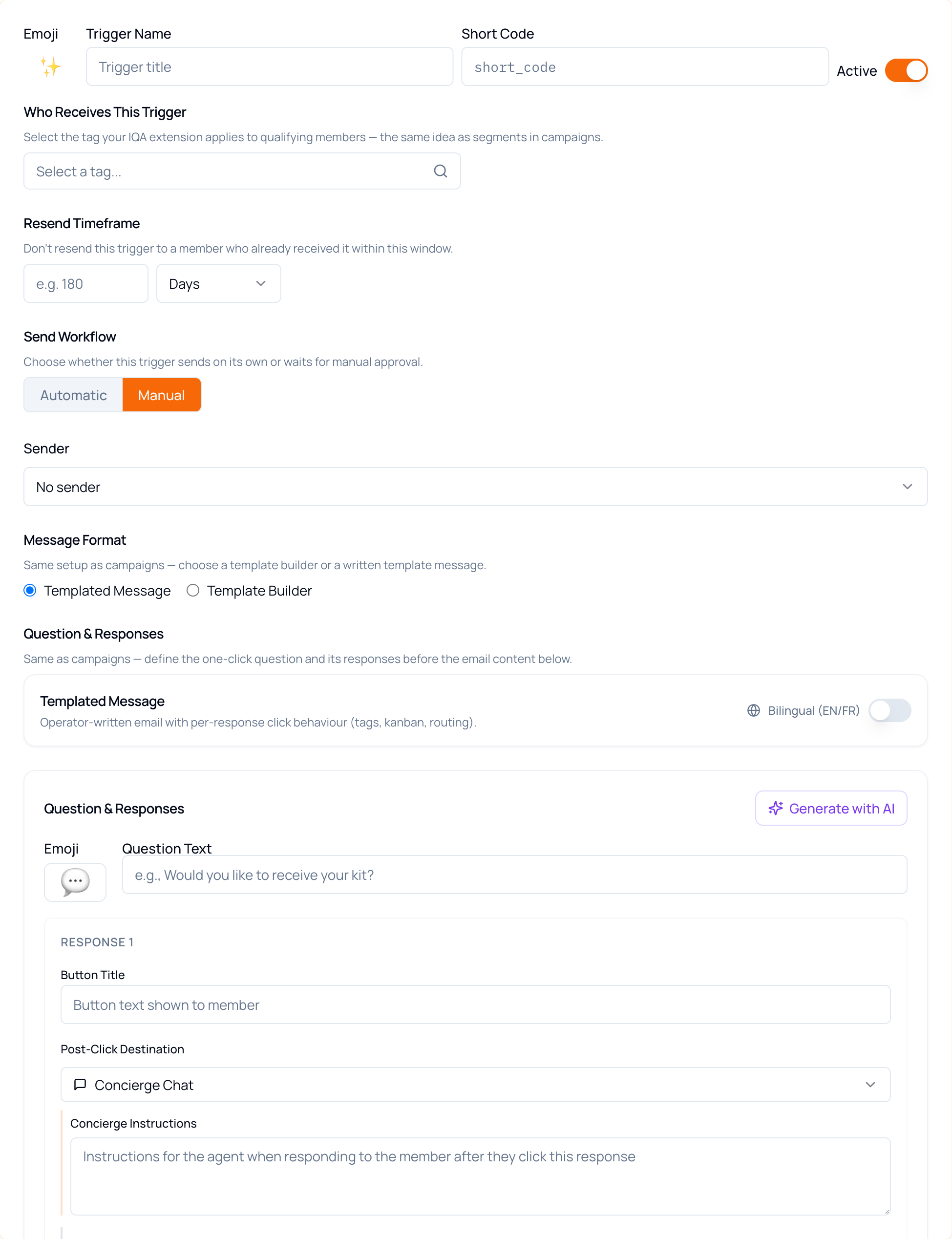
| Field | What to put in it |
|---|---|
| Emoji and Trigger Name | What this is, at a glance. The name is required. |
| Short Code | A simple identifier, required. |
| Active | On by default. Leave it on unless you are preparing something for later. |
| Who Receives This Trigger | The tag that defines the audience. See Choosing the Tag. |
| Resend Timeframe | How long to wait before this trigger may message the same person again. |
| Send Workflow | Automatic sends on its own; Manual holds each message for approval. |
| Sender | Who the email comes from. |
| Message Format | Templated Message or Template Builder. |
| Question & Responses and Email Content | The same question builder and email fields as a campaign action. |
Choosing the Tag
Section titled “Choosing the Tag”This is the field that decides who gets the message, and it behaves differently from the tag pickers elsewhere in Datascout.
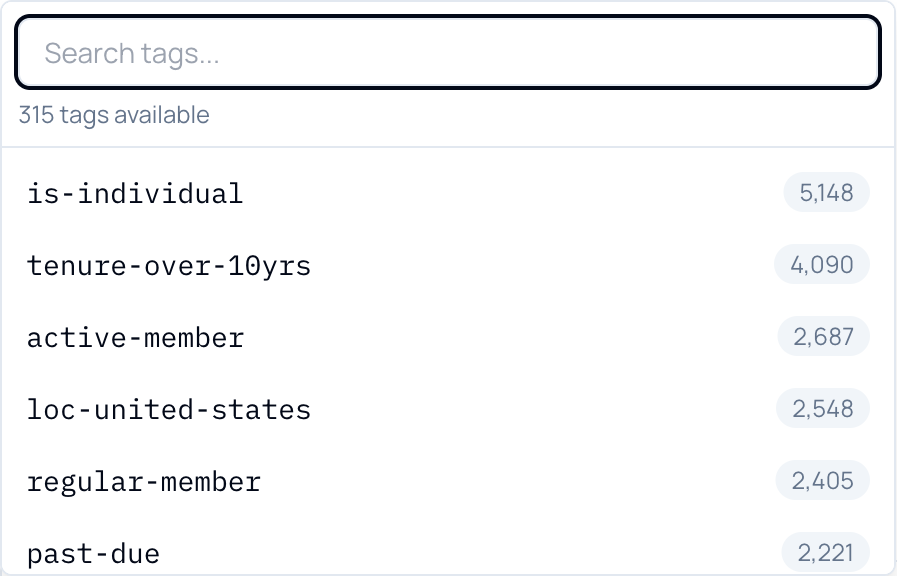
One tag per trigger. There are no checkboxes — picking a tag replaces whatever was there.
The list is ordered by how many members hold each tag, largest first, not alphabetically. The number beside each tag is the most useful figure on the screen: it is the size of the audience this trigger will eventually catch.
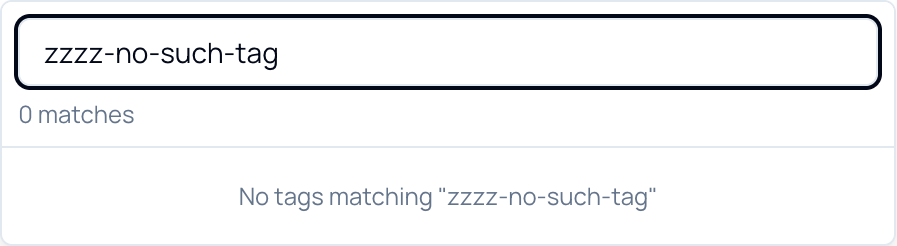
Because the order is by size rather than by name, and because an account can carry hundreds of tags, search rather than scroll. The box matches anywhere in a tag’s name, so loc-sc finds both loc-sc and loc-scotland.
When a Trigger Actually Runs
Section titled “When a Trigger Actually Runs”Two separate things have to be true, and the app only warns you about one of them.

First, the account has to be set up for sending. An administrator sets a time zone and a daily send time under Settings → Sending.
| For this to happen | The account needs |
|---|---|
| Any daily evaluation at all | a time zone saved |
| Automatic triggers evaluated daily | a time zone and a daily send time |
| Run Now on a single trigger | neither |
Second, the trigger itself has to have a tag. Without one, Run Now is greyed out — and this is the part nothing announces. Hover the greyed button and it explains itself; otherwise a trigger with everything else filled in simply never fires.
Once both are in place, triggers are evaluated once a day at 5:00 AM in the account’s time zone, or immediately when someone clicks Run Now.
Trigger Run History
Section titled “Trigger Run History”A log of every evaluation, under Campaigns → Trigger Run History.

A row is one evaluation pass, not one trigger. The daily run covers every active trigger at once, which is why one of the columns counts how many were evaluated.
| Column | What it counts |
|---|---|
| Started | When the pass began. |
| Source | Whether it was the daily run or someone pressing Run Now. |
| Triggered by | Who started it, for a manual run. |
| Triggers evaluated | How many triggers the pass looked at. |
| Members matched | How many members carried the tags. |
| Messages created | How many messages the pass produced. |
| Skipped (duplicate) | How many matched members were passed over. |
| Outcome | How the pass ended. |
The page has no filter, no search and no export — it is a plain log.
Troubleshooting
Section titled “Troubleshooting”| Symptom | Cause & fix |
|---|---|
| Run Now is greyed out | The trigger has no tag in Who Receives This Trigger. Hover the button and it says so. |
| Create Trigger stays greyed out | Trigger Name and Short Code are both required. Nothing on the form marks which is missing. |
| Nothing has run, and the list looks fine | Check the banner at the top. Daily evaluation needs a time zone saved under Settings → Sending, and Automatic triggers need a send time as well. |
| The tag you want is not in the picker | It matches anywhere in the name, so search rather than scroll. If it genuinely is not there, the tag has to be set up in iMIS first — this picker cannot create one. |
| Messages were created but nobody received them | The trigger is on Manual. Its messages are waiting in Messages → Requires Approval. |
| Skipped (duplicate) is high | That is the Resend Timeframe suppressing people who were messaged recently. Shorten the window if you want them reached sooner. |
| You want to remove a trigger | You cannot. Switch it Inactive instead. |